
See how your Anaplan model fits together.
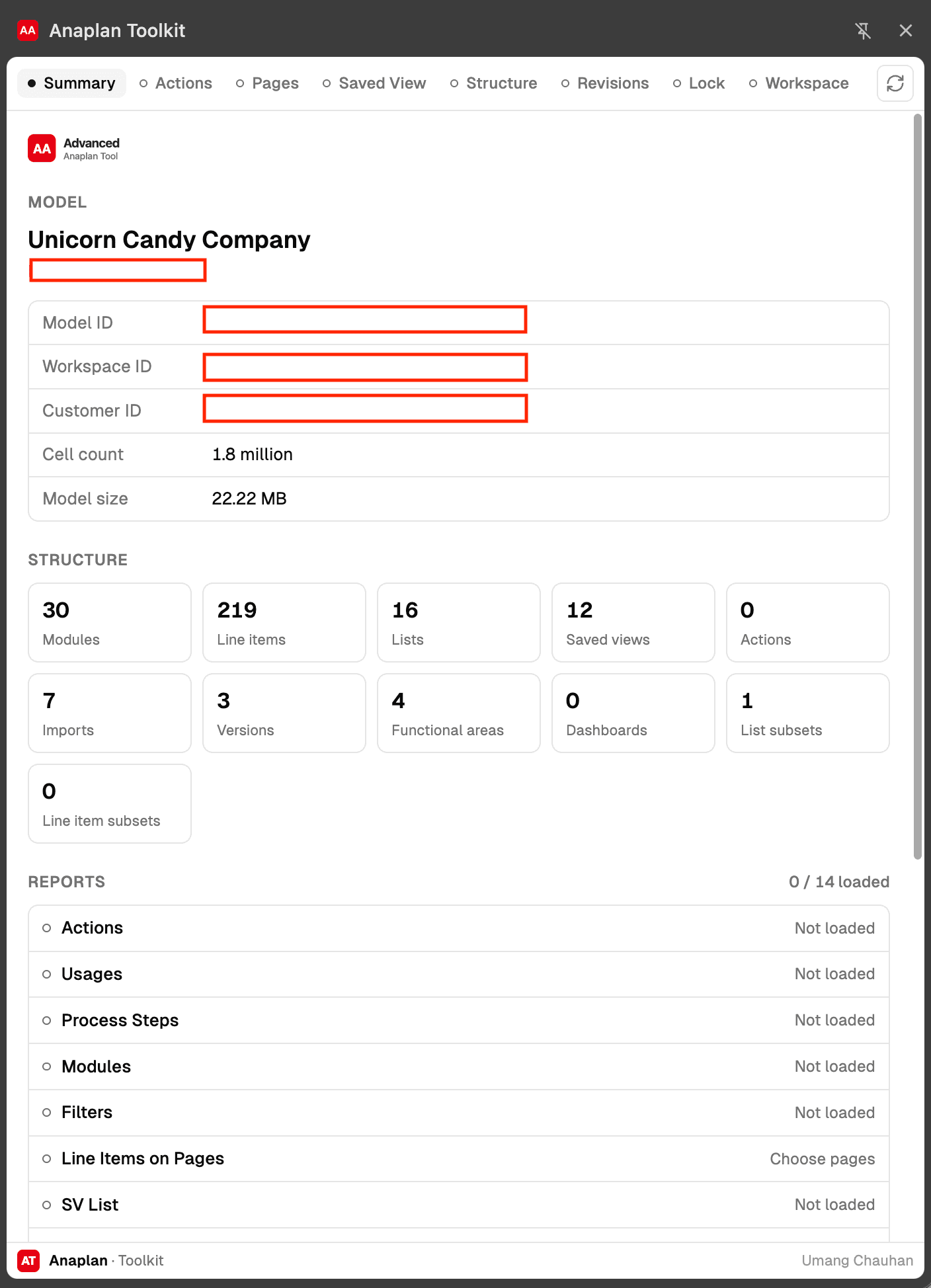
A side panel that reports on the structure of the model you have open — action IDs and process steps, where actions and modules are used, page filters, saved views, line item formulas, revision tags, lock status and workspace storage. Search it, sort it, export it to CSV, and stop clicking through blueprints.


- Read-only
- No data leaves your browser
- CSV export everywhere
New in 2.7
What's new
Pages › Line Items
Pick App pages and see every line item their widgets show — in rows, columns, page selector, filter, formatting, sort or hidden.
Hidden on grid
Formatting rules Anaplan keeps on hidden line items are tagged Hidden on grid instead of counted as usage. Data-filtered axes are tagged too.
Actions, rebuilt
Opens instantly on thousands of actions, searches names and IDs, sorts every column, and copies an ID in one click.
Fast on large models
Big tables draw 400 rows at a time with Show more, while search, sort and CSV export still cover every row.
Lock Monitor
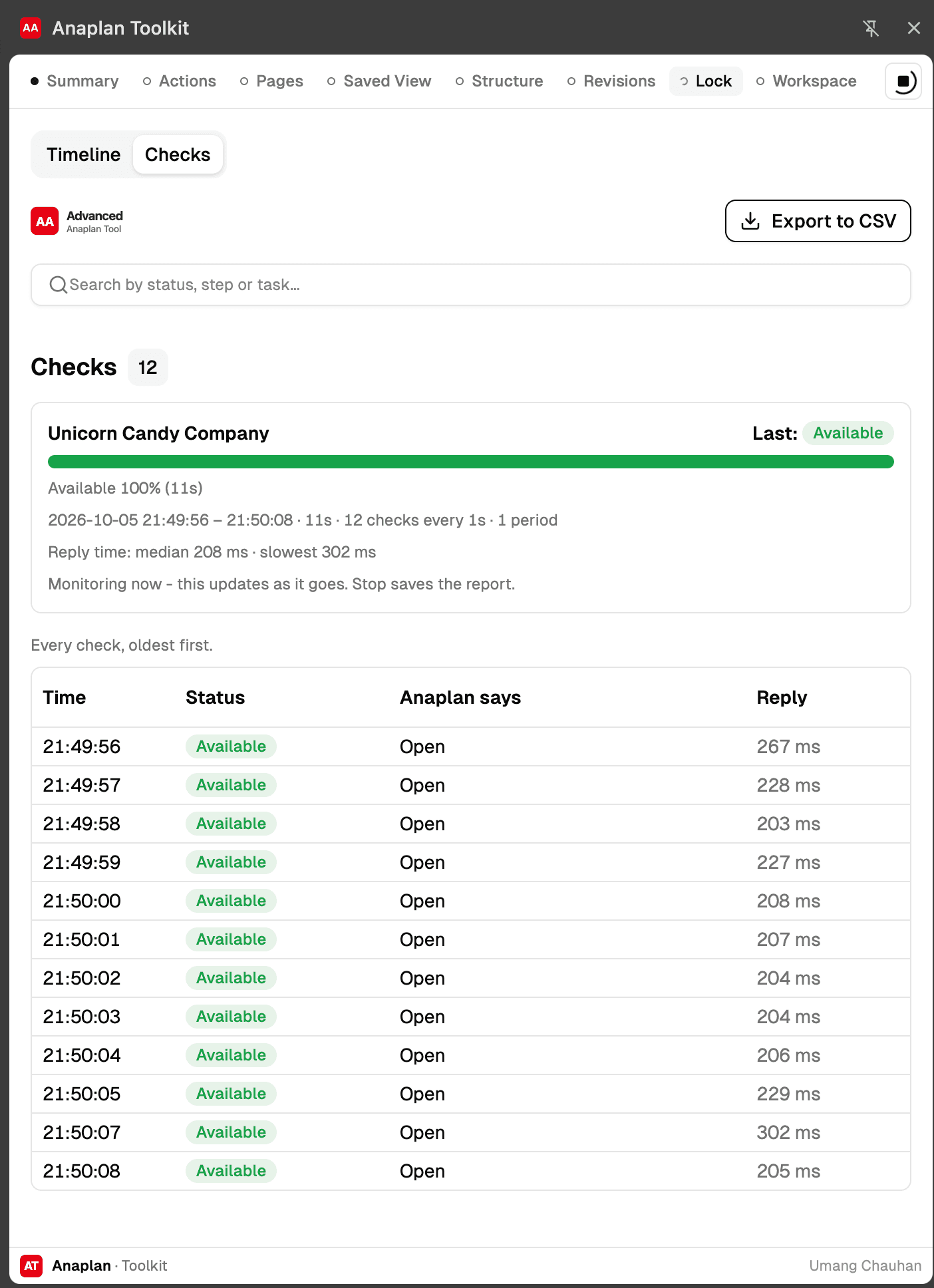
Checks every second up to every minute whether the model is available, busy, locked or offline — with reply times and what's running.
Get all & Download all
Gather every report in one go from the Summary, then save them all as CSVs in a single .zip.
Reports
Answers Anaplan doesn't put on one screen
Each report is gathered on demand from the model in your active tab, cached for that model, searchable, and exportable to CSV.
- Model Summary
Model name, IDs, size, structure counts and which reports are loaded. Get all data, or download every report as CSVs in one .zip.
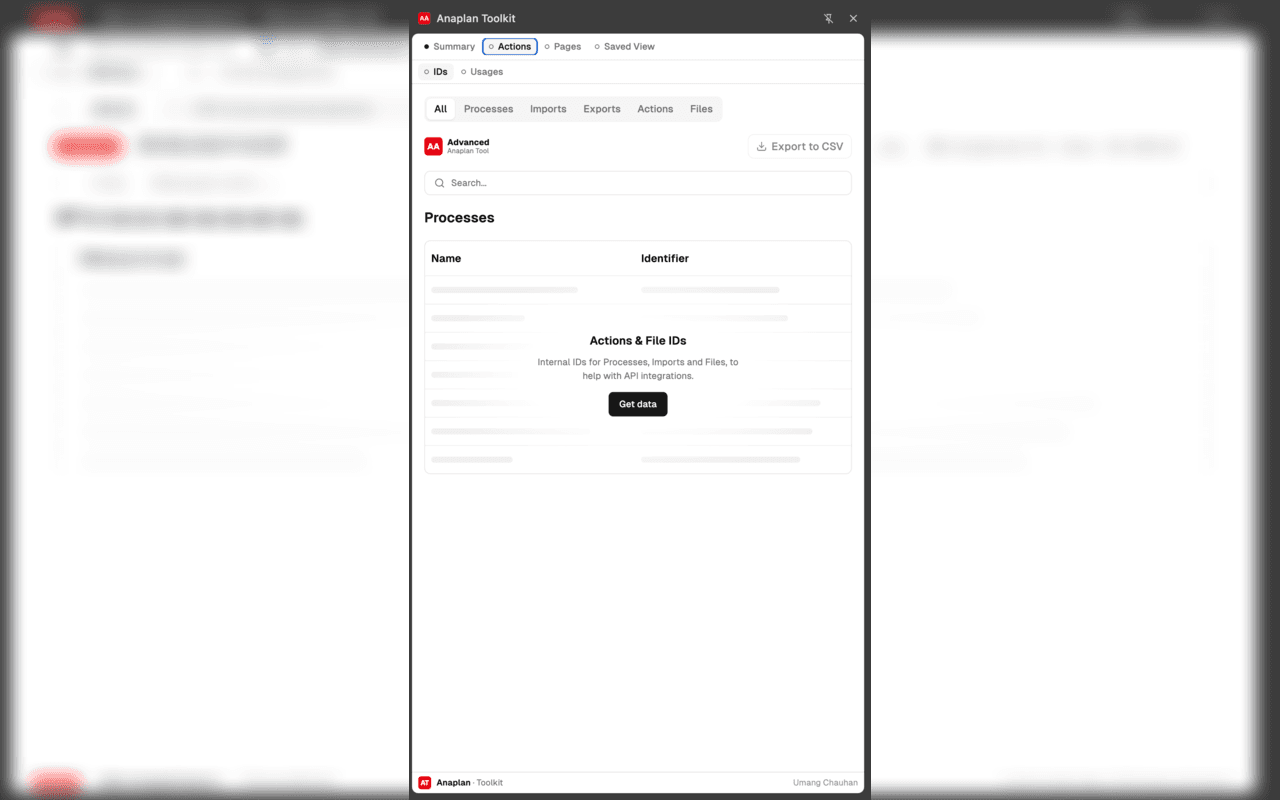
- Actions & File IDs
Internal IDs for Processes, Imports, Exports and Files — search by name or ID and copy one with a click.
- Action Usages
Where every Action is wired up across Apps, Pages and widgets.
- Process Steps
The actions each process runs, in order, with each import's source and target — plus a Copy API call button.
- Linked Pages
Which Apps and Pages consume each module, so you can trace lineage from backend to frontend.
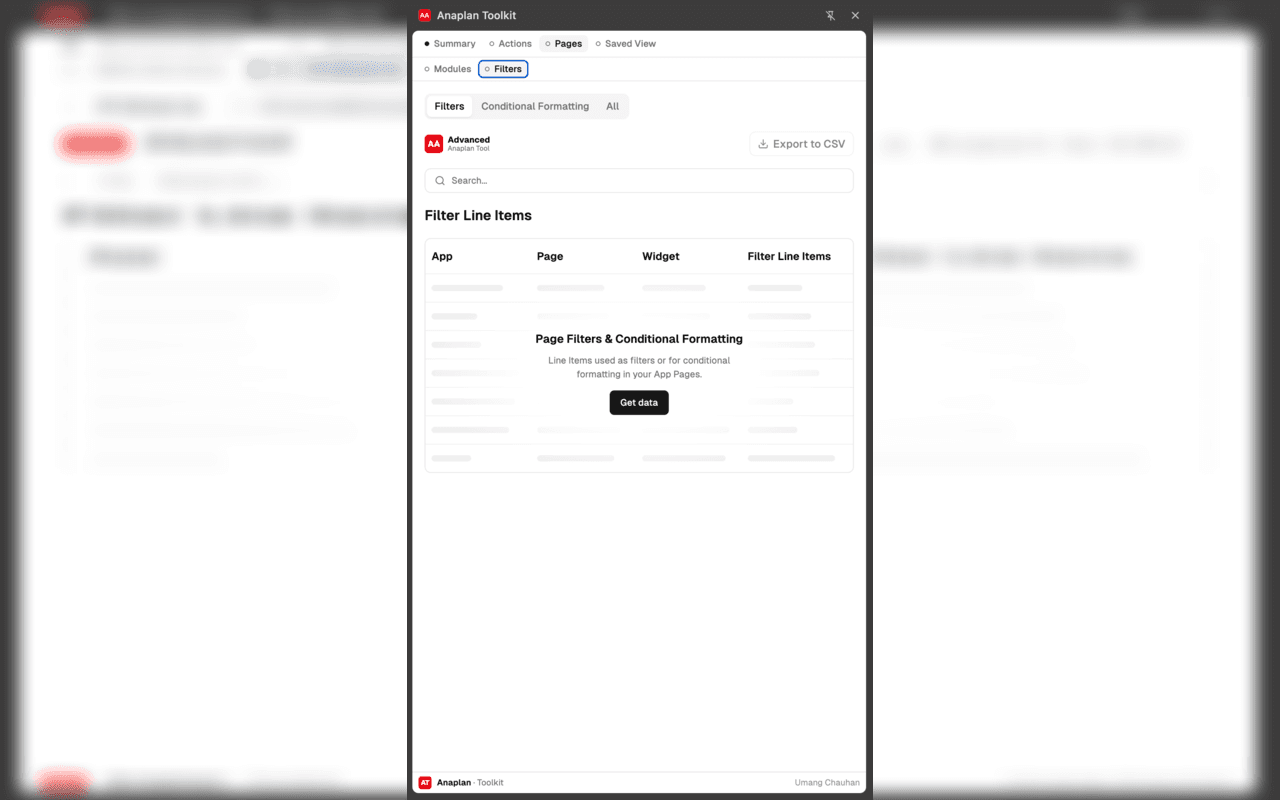
- Filters & Conditional Formatting
Line Items used as page filters or formatting rules, shown beside their conditions and colours — rules on hidden line items are tagged Hidden on grid.
- Line Items on Pages
Every line item shown on the App pages you pick, and where: rows, columns, page selector, filter, formatting, sort or hidden. By page or by line item.
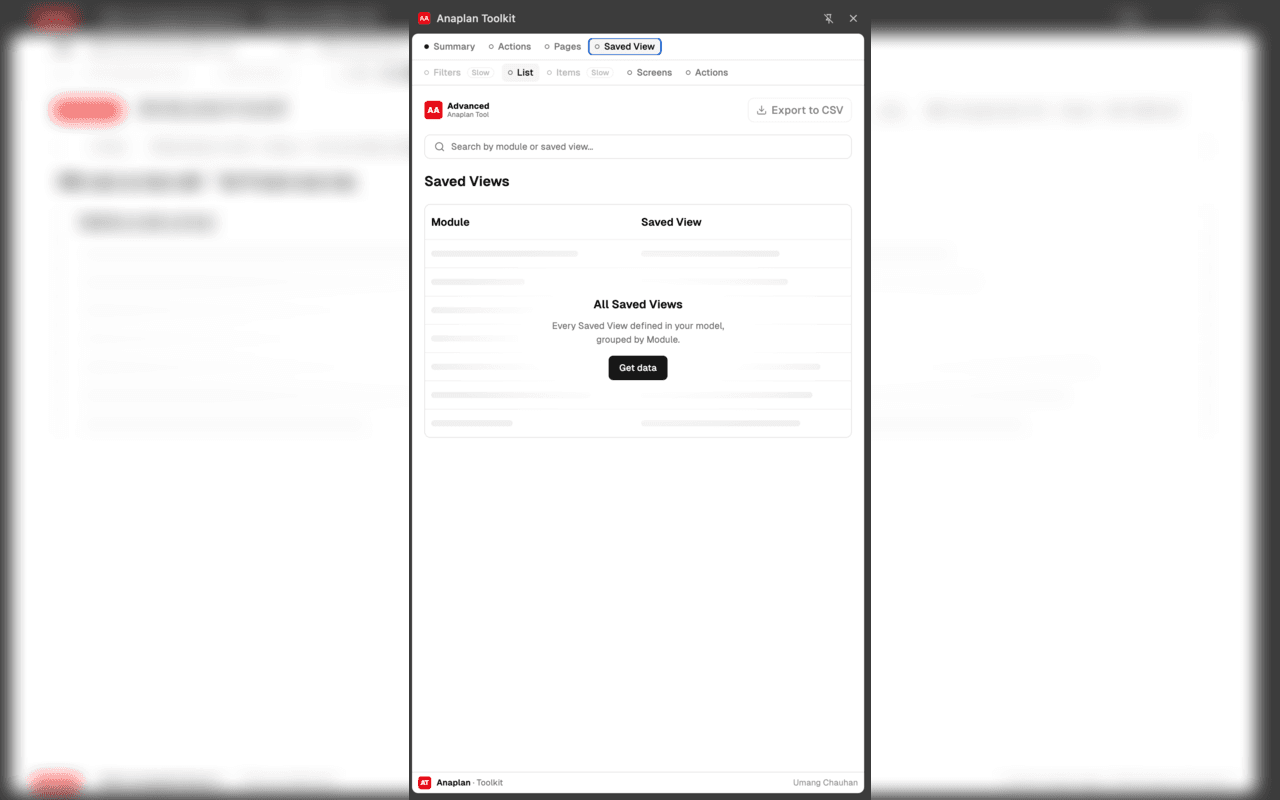
- All Saved Views
Every Saved View in the model, grouped by module.
- Saved Views in Screens
Which Saved View each App Page widget reads from.
- Saved Views in Actions
Imports whose source is a Saved View.
- Modules
Every module with its dimensions, time scale, time range, line item and saved view counts, and the App pages that use it.
- Line Items
Every line item with its format, applies-to, time scale and formula. Search matches formulas too.
- Lists & Properties
Every list with its parent and item count, and every property with its format and formula.
- Revision Tags
Who created each revision tag, when and where, and every model it was applied to.
- Lock Monitor
Checks at an interval you choose whether the model is available, busy, locked or offline, with a timeline, reply times and every check.
- Workspace Models & Storage
Active, archived and deleted models with sizes, under an in-use vs allowance meter.
- All Workspaces
Storage for every workspace you can access, and every active model across them.
- Fuzzy search across every column
- Sort by any column header
- One-click CSV export, in your sort order
- Cached per model — switch models freely
- Live progress while large models load
- Stays fast on tables with thousands of rows
Lock Monitor
Know when the model is free
Before a big import or a deployment, find out whether anything else is running. The Lock Monitor asks Anaplan for the model's status at an interval you choose and records every answer.
- Available, Updating, Busy, Locked or Offline — and what's running when it's busy
- Every second up to every minute, for up to 12 hours
- A timeline plus every check with its reply time, exportable to CSV
- Optional notifications when the model has been busy for 30 seconds, and when it's free again
Lives right beside your model
The panel follows the model in front of you. Switch tabs or models and it switches with you, keeping each model's results under its own key.
How it works
Three steps, no setup
- 1
Open a model
Sign in to Anaplan as usual and open any model. The toolkit uses your existing session — no extra login.
- 2
Open the side panel
Click the toolbar icon. A panel opens next to the model, starting on the Model Summary.
- 3
Get the data
Pick a report and hit Get data — or Get all data from the Summary. Results are cached per model, searchable, sortable and export to CSV in one click.
Keyboard shortcuts
Inside the Anaplan modelling UI. ⌘⌥ on macOS, Ctrl+Alt on Windows and Linux.
| Shortcut | In Anaplan's | Opens |
|---|---|---|
| ⌘⌥I | Actions tab | Actions & File IDs |
| ⌘⌥O | Actions tab | Action Usages |
| ⌘⌥I | Modules tab | Linked Pages |
| ⌘⌥O | Modules tab | Filters & Conditional Formatting |
Privacy
Your model data stays yours
Talks only to Anaplan
Every network call goes to Anaplan, over the session you're already signed into. No other server is ever contacted, and no password or token is ever asked for.
No analytics or telemetry
No tracking, crash reporting or advertising SDKs. Firefox listing declares data collection: none.
Read-only
Every report only reads model metadata. Nothing in your model is created, changed or deleted.
Session-only cache
Results live in browser session storage, keyed per model, and expire after 6 hours or when the browser closes.
Permissions: access to https://*.anaplan.com/*, the side panel, and local storage — plus notifications, only if you turn on the Lock Monitor's Notify me. Read the full privacy policy.

Get Anaplan Toolkit
Free on the Chrome Web Store (Chrome, Edge and other Chromium browsers) and Firefox Add-ons (Firefox 140+).
Questions or feedback? contact@umang.dev · Privacy policy